How it works
An eSIM is a digital SIM. You download it to your phone instead of inserting a card, and it sits alongside your normal SIM.
Buy before you go: you get the eSIM by email and on your order page within seconds. Then:
Get online in 3 steps
⚠️ Don’t delete this eSIM from your phone. It can be installed only once, so keep it even after your trip — you can top it up next time.
- 1
Install the eSIMNow, on Wi-Fi
- iPhone:
- Tap Install eSIM on your order page or in the email (iOS 17.4+), or Settings → Mobile Service (Cellular) → Add eSIM → Use QR Code.
- Android:
- Settings → Connections (or Network & internet) → SIM manager / SIMs → Add eSIM → scan the QR code shown on another screen.
- 2
Turn on the line and data roamingWhen you land
- iPhone:
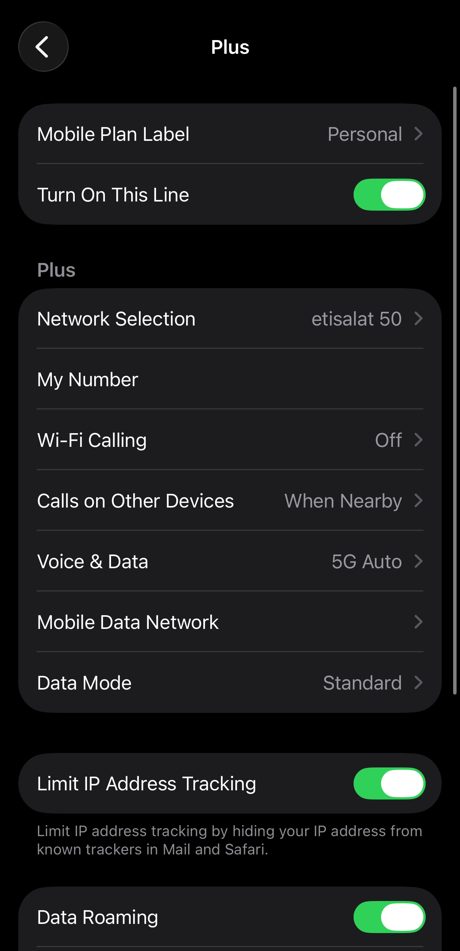
- Settings → Mobile Service (Cellular) → tap the new line: it shows the network name “Plus” and a label your iPhone picked, like “Personal” or “Secondary”. Switch on Turn On This Line and Data Roaming. Tip: tap Mobile Plan Label to rename it “globeSIM”.
- Android:
- Settings → Network & internet → SIMs → the new SIM (shown as “Plus”) → switch on the SIM and Roaming. Tip: rename it “globeSIM”.
- 3
Use it for mobile dataWhen you land
- iPhone:
- Settings → Mobile Service (Cellular) → Mobile Data (Cellular Data) → choose the new line. Keep your usual line for calls and texts, and turn off Allow Mobile Data Switching.
- Android:
- Settings → Network & internet → SIMs → Mobile data → choose the new SIM. Keep your usual SIM for calls and texts.
Check it’s working: switch off Wi-Fi, open a website, then look at Settings → Mobile Service (Cellular), or on Android Network & internet → SIMs. The data used should grow on the new line, not on your usual one.
Next trip? Use the same eSIM
Keep the eSIM on your phone after the trip. Before your next one, open My eSIMs, tap “Add data or a new trip” and pick the destination: the plan goes onto the eSIM you already have, with nothing to install.
Compatible phones
Quick check: dial *#06#. If you see an EID number, your phone supports eSIM. It also needs to be carrier-unlocked.
- iPhone
- XR, XS and every model since, including iPhone SE (2nd gen and later). Phones bought in mainland China don’t support eSIM.
- Samsung Galaxy
- S20 and later, Z Flip and Z Fold (all), Note 20, and A54 and later. Some US carrier models and models from mainland China are excluded.
- Google Pixel
- Pixel 3 and later (Pixel 3a from Japan/SE Asia excluded).
- Others
- Recent flagships from Motorola, OnePlus, Xiaomi, Oppo, Sony and Huawei. Check Settings for an option to add an eSIM.
Troubleshooting
I installed the eSIM but have no internet
Make sure the eSIM is selected for mobile data and that data roaming is turned on for it. Your plan only works once you’re in a covered country.
The install says the code is already used
Each eSIM can be installed only once, so don’t delete it. If you did, contact us and we’ll help.
My phone says “No service” after landing
Turn airplane mode on and off, or choose a network manually from the list on your country page.
My phone is locked to my carrier
Carrier-locked phones can’t use other eSIMs. Ask your carrier to unlock it before you travel.
Still stuck? Email support@globes.im with your order email, or check your data balance.