eSIM QR code: how to scan it, and what to do if it fails
· By Aika Murzabulatova, globeSIM team
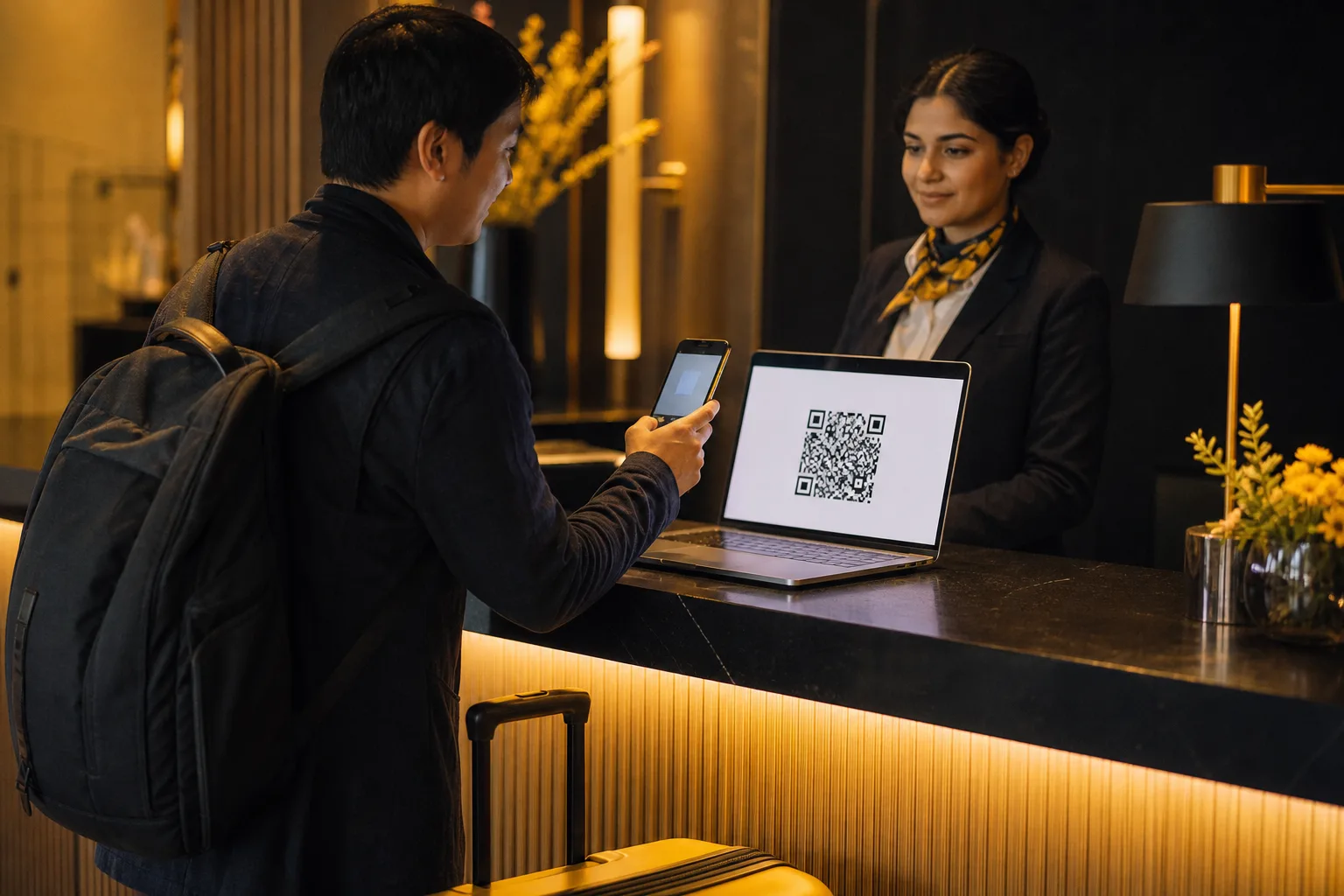
In short
An eSIM QR code holds the details your phone needs to download an eSIM. Scan it once, on Wi-Fi, from a second screen: on iPhone through Settings or the Camera app, on Android through the SIM settings. If scanning fails, type the SM-DP+ address and activation code instead.
What is an eSIM QR code?
An eSIM QR code is a picture of a short text string. It tells your phone which server to download the eSIM from and which profile is yours. Apple describes the scan in its guide to setting up eSIM on iPhone.
The same details also come as plain text: an SM-DP+ address and an activation code. The QR code, the codes and the one-tap install button all lead to the same eSIM, so you only need one of them. After the download, the eSIM shows up as a new line in your mobile settings, next to your usual SIM.
Three ways to install the same eSIM
Pick the method that fits the devices you have with you. All three need an internet connection while the eSIM downloads, and Wi-Fi is the safest choice. The download does not use your plan's data.
| Option | Best when | What you need |
|---|---|---|
| One-tap install button | You are on an iPhone with iOS 17.4 or later | The order email or order page open on that iPhone |
| Scan the QR code | You have a second screen, such as a laptop or tablet | The QR code shown on that screen, or a printout |
| Enter the codes by hand | The camera will not read the code, or you only have the phone | The SM-DP+ address and activation code from the email or order page |
How to scan an eSIM QR code on iPhone
On iPhone, you scan the code from the eSIM menu in Settings. Open the QR code on another screen first, because the camera cannot read a code shown on the same phone.
Scanning the code on iPhone
- 01
Connect to Wi-Fi
The eSIM downloads over the internet
- 02
Open the QR code on a second screen
A laptop, a tablet or a printout
- 03
Settings, then Cellular, then Add eSIM
It may be called Mobile Service
- 04
Tap Use QR Code and scan
Then label the new line
- 05
Switch the line on when you land
With Data Roaming on for that line
- Open Settings and tap Cellular. In some regions it is called Mobile Service.
- Tap Add eSIM (Add Cellular Plan on some iOS versions), then Use QR Code.
- Hold the iPhone so the code fills the frame, and wait for the download to finish.
- Give the new line a label, such as Travel, and keep your usual line for calls and texts.
You can also scan with the Camera app: point it at the code and tap the Cellular Plan Detected notification. With iOS 17.4 or later, you can skip scanning: tap Install on iPhone in our email or Install eSIM on the order page, or touch and hold the QR code in Mail and tap Add eSIM. Our iPhone install guide covers every screen.
How to scan an eSIM QR code on Android
On Android, the scanner sits in the SIM settings, and the menu names depend on the brand. Samsung lists the steps in its guide to using an eSIM on Galaxy phones.
- Samsung Galaxy: Settings, then Connections, then SIM manager, then Add eSIM, and scan the code. Depending on the software version, it can read SIM card manager, then Add mobile plan, then Add using QR code.
- Google Pixel: Settings, then Network & internet, then SIMs, then Add SIM, and choose to set up an eSIM.
- Other brands: look in Settings for SIM cards, SIM manager or Mobile network, then an option to add or download an eSIM.
Make sure the phone is on Wi-Fi or another data connection before you scan. Our Android install guide shows the full path for Samsung and Pixel phones.
Can you reuse an eSIM QR code?
No. A globeSIM QR code installs the eSIM once. After the download, the code is used up, and a deleted eSIM cannot be downloaded again from the same code. Moving to a new iPhone works differently: see how to transfer an eSIM to a new iPhone.
- Keep the eSIM on your phone after the trip, and switch the line off when you get home.
- For your next trip, add a new plan to the same eSIM from My eSIMs. There is no new QR code to scan.
- If you deleted the eSIM by mistake right after buying and used no data, write to us with your order email.

No second screen? Enter the codes by hand
If the camera will not read the code, or you only have your phone, type the details instead. You find the SM-DP+ address and the activation code in the order email and on your order page.
- iPhone: on the scan screen, tap Enter Details Manually and paste the SM-DP+ address and the activation code.
- Android: choose the option to add the eSIM with an activation code instead of scanning (on Samsung, Add using activation code), and enter the details it asks for.
- Use the copy buttons on the order page, so no character is mistyped.
On iPhone with iOS 17.4 or later, the install button in the email or on the order page does the same job with one tap. It is the easiest way when the email is open on the phone you are installing on.
When the eSIM QR code will not scan
Most scan problems have a simple cause: no internet, a code that is already used, or a phone that cannot take an eSIM. Match what you see to the fix below.
Fixing a QR code that fails
The QR code does not install the eSIM
The camera does not react
Enter the SM-DP+ address and activation code by hand
The phone says the code was already used
Look for a new line in your mobile settings: it is probably installed
The download stops or times out
Connect to Wi-Fi and try again from the email or order page
There is no option to add an eSIM
Check that the phone supports eSIM and is not locked to a carrier
Our phone check on the Help page tells you whether your model takes an eSIM. On iPhone, Settings, then General, then About, then Carrier Lock should say No SIM restrictions.
What to do next
A few minutes at home means you land online. Pick a plan for your destination, such as our eSIM for Turkey or plans for Japan and the UAE, then work through this list before you fly.
- Check that your phone supports eSIM and is not locked to a carrier.
- Keep the order email: it holds the QR code, the SM-DP+ address, the activation code and a link to your order page.
- Install the eSIM on Wi-Fi at home, and leave the line off until you land.
- When you arrive, switch the line on, turn on Data Roaming for it and choose it for mobile data.
Is your phone eSIM-compatible?
Search our list of phones, or let the page detect yours.
FAQ
Can I use the same eSIM QR code twice?
No. The code installs the eSIM once. Keep the eSIM on your phone after the trip and add a new plan to it next time; there is nothing new to scan.
Can I scan an eSIM QR code from a screenshot?
Yes, if you show it on another screen. A phone camera cannot read its own display, so use a second device or a printout, or type the codes by hand instead.
Do I need Wi-Fi to scan the eSIM QR code?
You need an internet connection, because the phone downloads the eSIM after the scan. Wi-Fi is best. The download does not use your plan's data.
Where do I find my globeSIM QR code?
In the order email and on your order page. The page shows it for one hour after purchase, then only when you sign in with the email you used to buy.
Does scanning the QR code start my plan?
No. Scanning only installs the eSIM. Your plan starts when the eSIM first connects to a network in a covered country, so you can install it days before the trip.
Sources
- Set up eSIM on iPhone (Apple Support, checked Nov 19, 2026)
- How to use an eSIM with your Galaxy phone (Samsung UK Support, checked Nov 19, 2026)