Data roaming on iPhone: turn it on for a travel eSIM
· By Arman Murzabulatov, globeSIM team
In short
Yes, a travel eSIM needs Data Roaming on, but only on the eSIM line. On iPhone, open Settings, then Cellular, tap the travel line and turn on Data Roaming. Then choose the travel line for Cellular Data and leave Data Roaming off on your home line.
Does a travel eSIM need Data Roaming on?
Yes. A travel eSIM connects through partner networks in the country you visit, so your iPhone treats that connection as roaming. Without Data Roaming on for that line, the eSIM can show signal but load nothing. Apple explains the switch in its guide to cellular data roaming options.
The switch is set per line. Turning it on for the travel eSIM does not turn it on for your home SIM. That is how you get data abroad without your home carrier's roaming charges.
Which iPhone switch does what
Four settings decide which line your iPhone uses for data abroad. Most problems come from mixing them up, so it helps to know what each one does before you land.
| Setting | What it does | For your trip |
|---|---|---|
| Turn On This Line | Switches a SIM or eSIM line on or off | On for the travel eSIM; your choice for the home SIM |
| Data Roaming | Lets a line use data on networks outside its home carrier | On for the travel eSIM, off for the home SIM |
| Cellular Data | Picks the one line that carries mobile data | The travel eSIM |
| Allow Cellular Data Switching | Lets iPhone move data to the other line when coverage drops | Off, so data never falls back to the home SIM |
Two screens, four switches
globeSIM
- 1Turn On This Lineon
- 2Data Roamingon
Cellular Data
- 3globeSIM
- Home SIM
- 4Allow Cellular Data Switchingoff
- 1Turn On This Line: On for the travel eSIM.
- 2Data Roaming: On for the travel eSIM only.
- 3Cellular Data: Mobile data goes through the travel eSIM.
- 4Allow Cellular Data Switching: Off, so data never falls back to your home SIM.
How to turn on Data Roaming for the eSIM line
Do this when you land. Your plan's validity starts when the eSIM first connects to a network in a covered country, so you can install it at home on Wi-Fi and switch it on after landing.
- Open Settings and tap Cellular. In some regions it is called Mobile Service.
- Under SIMs, tap the travel eSIM line and make sure Turn On This Line is on.
- On the same screen, scroll down and turn on Data Roaming.
- Go back to Cellular, tap Cellular Data and choose the travel eSIM line.
- On that screen, turn off Allow Cellular Data Switching.
Menu names vary by region and iOS version: Cellular can read Mobile Service, and Cellular Data can read Mobile Data. If you have not installed the eSIM yet, start with our iPhone install guide.
What it looks like on our own iPhone
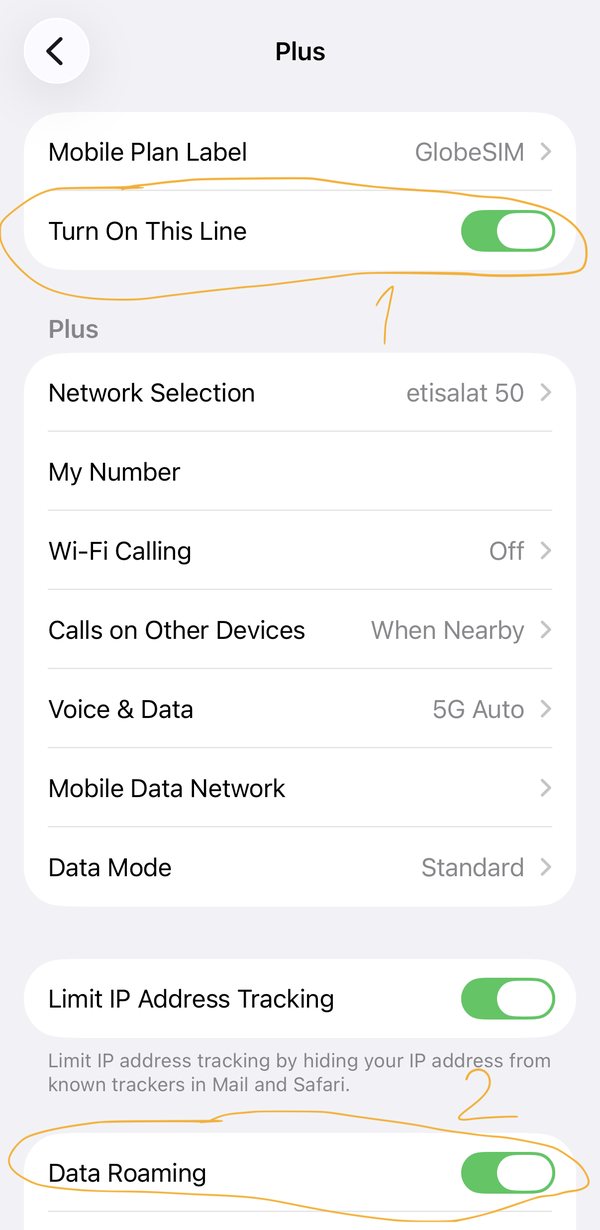
We took this screenshot on our own iPhone on 18 November 2026, in the UAE, with a globeSIM eSIM installed. The line shows up as Plus, and we labelled it GlobeSIM under Mobile Plan Label.
- Turn On This Line (1) is on, so the phone uses the travel eSIM.
- Data Roaming (2) is on for this line only. The eSIM connects through a local network, here etisalat, so iPhone treats the data as roaming.
- Wi-Fi Calling is off and My Number is empty, because globeSIM plans are data only.
Keep your home SIM off roaming
Your home line can stay on for calls and texts while the travel eSIM carries data. iPhone uses one line at a time for mobile data, the one you chose under Cellular Data, as Apple notes in its article on using Dual SIM with an eSIM.
- Tap your home line under SIMs and turn Data Roaming off on its page.
- Keep Allow Cellular Data Switching off, or iPhone can move data to the home line when the travel signal is weak.
- Check your home carrier's prices for calls and texts abroad. Those rates still apply to your home number.
Calls, texts and iMessage while you travel
globeSIM plans are data only: they do not come with a phone number, calls or SMS. Calls and texts on your usual number still go through your home line, which is why that line can stay on while the eSIM carries data.
- Keep your usual line as the default line and for iMessage and FaceTime, so they keep using your number.
- WhatsApp and iMessage then send messages over the travel eSIM's data, like any other app.
- In Settings, the travel line shows the name of our partner's home network, "Plus", rather than "globeSIM", until you rename it.
Check that data works when you land
Give the phone a minute or two to find a partner network after you switch the line on. Then test the travel line on its own, without Wi-Fi.
- Turn Wi-Fi off, so the test really uses mobile data.
- Open a website or a map. If it loads, the travel line works.
- Open Settings, then Cellular. The data used should grow on the travel line, not on your home line.
Is your phone eSIM-compatible?
Search our list of phones, or let the page detect yours.
If data still does not work
Most cases are a setting, not a network fault. Work through these steps in order, and check the result after each one.
- Check that Data Roaming is on for the travel line and that Cellular Data points to it.
- Turn Airplane Mode on for 10 seconds, then off, to make the phone search for networks again.
- Open the travel line, tap Network Selection, turn off Automatic and pick a network from the list. This also helps when one network is down, as in the Japan mobile outage of November 2026.
- Restart the iPhone, and make sure you are in a country your plan covers.
- Still nothing? Contact our support from the email address you used for the order.
Before your next trip
Keep the eSIM installed after the trip. Next time, add a new plan to the same eSIM, then turn the line on, check that Data Roaming is on and choose it for Cellular Data. Changing phones? Check that the new one takes an eSIM on our compatible phones page, and see our help page for the basics.
How much data will you need?
See typical use for maps, video, calls and social apps before you pick a plan.
FAQ
Will my home carrier charge me if Data Roaming is on for the eSIM?
No. The setting works per line, so roaming on the travel eSIM uses that plan's data. Your home carrier only charges for data if Data Roaming is on for the home line.
Should I turn off Data Roaming on my main SIM?
Yes, unless your carrier's roaming plan covers the trip. Turn it off on the home line's settings page and keep Allow Cellular Data Switching off too.
Can I still get calls and texts on my usual number?
Yes, if the home line stays on. Your home carrier's rates for calls and texts abroad apply, so check them before you travel.
Does turning on data roaming on iPhone use more data?
No. The switch itself uses no data. It only lets the line connect through partner networks; your apps decide how much data you use.
Do I need to turn Data Roaming off when I get home?
It is a good habit to switch back. Turn the travel line off or choose your home line for Cellular Data again, so your phone goes back to your normal plan. Data Roaming on the travel line can stay on.
Sources
- About cellular data roaming options for your iPhone and iPad (Apple Support, checked Nov 14, 2026)
- Using Dual SIM with an eSIM (Apple Support, checked Nov 14, 2026)
- Use cellular data on your iPhone or iPad (Apple Support, checked Nov 14, 2026)