eSIM not working abroad: how to fix it
· By Aika Murzabulatova, globeSIM team

In short
When an eSIM is not working abroad, the cause is usually a setting, not the network. Check that the travel line is on, chosen for mobile data and has Data Roaming on. Then toggle Airplane Mode, pick a network by hand and restart. Never delete the eSIM while you troubleshoot.
Why is my eSIM not working abroad?
Most of the time, the eSIM is installed and the network is fine, but one switch is in the wrong place. Apple's guide to No Service or Searching on iPhone starts with Airplane Mode and a restart, and also covers the line and Data Roaming.
A travel eSIM adds a few causes of its own. It works only in the countries its plan covers, it is data-only, and its plan ends when the data or the days run out. A phone locked to a carrier cannot use it at all.
Start with what your phone shows, because the symptom points to the fix. The table below covers the most common cases.
Match the symptom to the fix
| Symptom | Likely cause | What to try first |
|---|---|---|
| Signal bars, but nothing loads | Data Roaming is off, or mobile data uses your home SIM | Turn on Data Roaming for the travel line and choose it for mobile data |
| No Service or Searching | The phone has not joined a partner network yet | Airplane Mode on for 15 seconds, then off; then pick a network by hand |
| SOS or SOS only | The phone is not on its own network, so only emergency calls may work | The same steps as for No Service, then restart the phone |
| The travel line is greyed out | The line is switched off | Open the line in your SIM settings and turn it on |
| Data stopped in the middle of the trip | The data or the days on the plan ran out | Check your balance and add a plan from My eSIMs |
Three settings to check before anything else
Three settings cause most cases of an eSIM with no internet. Check them first, with Wi-Fi off, before you restart the phone or change anything else.
- The travel line is on. A line that is switched off stays installed but cannot connect.
- Mobile data uses the travel line, not your home SIM. The phone uses one line at a time for data.
- Data Roaming is on for the travel line. A travel eSIM connects through partner networks, so the phone treats it as roaming.
Three checks for an eSIM with no internet
The eSIM is installed, but nothing loads
The travel line is off
Turn the line on in your SIM settings
Mobile data uses your home SIM
Choose the travel line for mobile data
Data Roaming is off for the travel line
Turn it on, for the travel line only
All three are already right
Toggle Airplane Mode and pick a network by hand
How to fix an eSIM not working on iPhone
On iPhone, each line has its own page under Settings, then Cellular (called Mobile Service in some regions). Work through these steps in order, and test with Wi-Fi off after each one.
- Open Settings, then Cellular, and tap the travel line. Make sure Turn On This Line is on.
- On the same page, turn on Data Roaming.
- Go back, tap Cellular Data and choose the travel line. Keep Allow Cellular Data Switching off.
- Turn on Airplane Mode for at least 15 seconds, then turn it off.
- Still nothing? Tap the travel line, then Network Selection, turn off Automatic and pick a network from the list.
- Restart the iPhone.
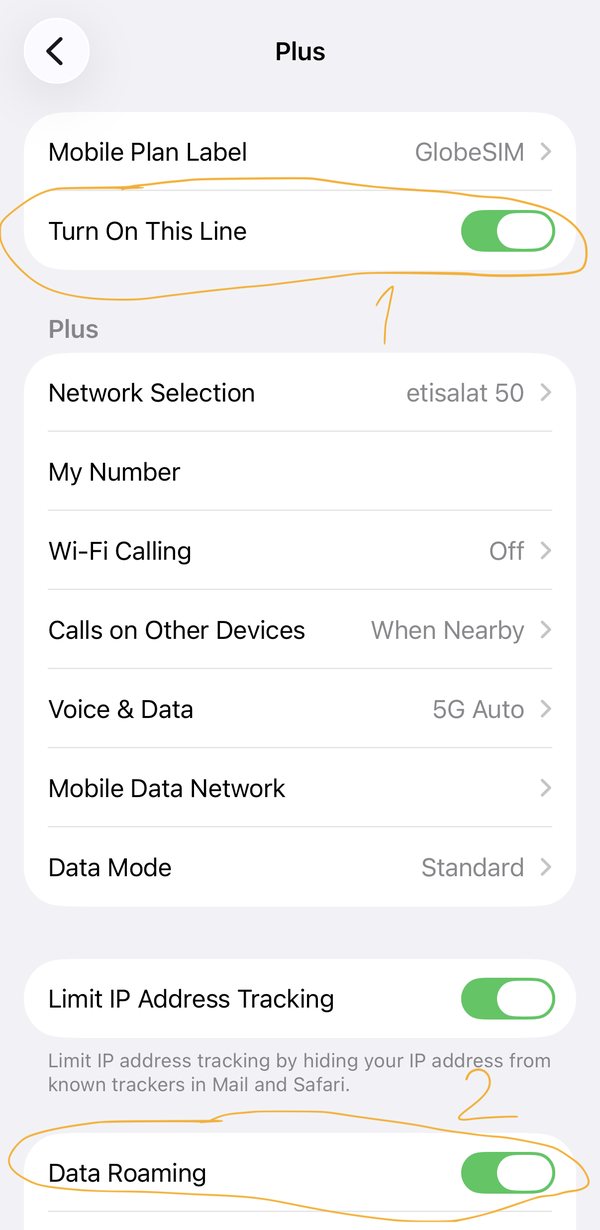
Apple also suggests a carrier settings update. On Wi-Fi, open Settings, then General, then About, and accept the update if one is offered. Our iPhone install guide shows every screen of the setup.
How to fix an eSIM not working on Android
On Android, menu names depend on the brand, but the checks are the same. Google's help page to fix mobile connectivity on Pixel covers the basics: the SIM and mobile data switched on, Airplane Mode and a restart.
- Google Pixel: Settings, then Network & internet, then SIMs. Tap the travel eSIM and make sure Use SIM and Mobile data are on.
- Samsung Galaxy: Settings, then Connections, then SIM manager. Switch the travel eSIM on and set it for mobile data. Data roaming is under Connections, then Mobile networks.
- Roaming: turn it on for the travel eSIM only, and keep it off on your usual SIM.
- Network: in the travel eSIM's settings, turn off automatic network selection and pick a network by hand.
If that does not help, power the phone off, wait 30 seconds and turn it on again. Write to us before you try any reset option, and never choose one that erases downloaded SIMs or eSIMs. Our Android install guide has the full paths.
When the phone shows No Service or SOS
No Service or Searching means the phone is not on a mobile network, and SOS means it is not on its own network and can only make emergency calls. Abroad, this usually means the phone has not found a partner network yet, or you are outside your plan's coverage. Far out at sea on a cruise, No Service on the travel line is normal, because ships' own networks are not part of our plans; our cruise eSIM guide explains what to use instead.
- Give the phone a minute or two after landing to find a partner network.
- Check that your plan covers the country you are in. A single-country plan does not work across the border.
- Open your country page on our site and note the networks listed there. Pick one of them by hand under Network Selection.
- Install any waiting software update for your phone, on Wi-Fi.
Apple notes that SOS means the iPhone is not on its carrier's network but can still make emergency calls, and that this label appears in Australia, Canada and the United States.
Signal but no data in the middle of a trip
If the eSIM worked and then stopped, check the plan before the phone. A plan stops when its data runs out or its validity period ends, and unused data does not carry over.
- Sign in to your account to see how much data is left.
- If the data or the days ran out, open My eSIMs, tap Add data or a new trip and pick your destination. A destination this eSIM can take goes onto the same eSIM, with nothing to install; one marked New eSIM comes on a new eSIM that you install once.
- Speed and coverage depend on the local networks and can vary, so test in another spot before you assume a fault. A whole network can also go down, as in the Japan mobile outage of November 2026.
How much data will you need?
See typical use for maps, video, calls and social apps before you pick a plan.
Problems a setting cannot fix
Some causes sit outside the settings menu. Check these if the eSIM never connected at all, even after every step above.
- The phone is locked to a carrier. A locked phone cannot use other eSIMs. On iPhone, Settings, then General, then About, then Carrier Lock should say No SIM restrictions.
- The phone does not support eSIM. Dial *#06#: if you see an EID number, it does. iPhones bought in mainland China do not support eSIM.
- The eSIM was deleted. It cannot be downloaded again from the same code, so write to us with your order email.
- You are outside the covered countries. The plan works only on networks in the countries it covers.
If your eSIM is installed, you cannot get online in a covered country and our support team cannot fix it, our refund policy gives you a full refund of that plan. A plan that has already used data cannot be refunded.
What to do next
If nothing above worked, contact our support from the email address you used for the order. Add these details, so we can help in one reply:
- The country you are in, and any network names your phone shows.
- Your phone model and software version.
- What you see: No Service, SOS, or signal bars with nothing loading.
- Which steps from this guide you already tried.
Planning a trip? Install your eSIM at home on Wi-Fi a day or two before you fly, for example our eSIM for Turkey or plans for Japan and the UAE. The plan starts only when the eSIM first connects in a covered country.
Is your phone eSIM-compatible?
Search our list of phones, or let the page detect yours.
FAQ
Why is my eSIM not working on my iPhone?
Usually one setting is off. Check that the travel line is on, has Data Roaming on and is chosen under Cellular Data. Then toggle Airplane Mode, pick a network by hand and restart the iPhone.
Why does my eSIM say No Service abroad?
The phone has not joined a partner network yet, or you are outside your plan's coverage. Wait a minute or two, toggle Airplane Mode, then pick a network listed on your country page.
Should I delete and reinstall the eSIM?
No. A globeSIM eSIM can be installed only once, and a deleted eSIM cannot be downloaded again from the same code. Turn the line off and on instead, and write to us if that fails.
Does my plan start if the eSIM never connects?
No. The validity period starts when the eSIM first connects to a supported network in a covered country. If it never connected there, the days on your plan have not started.
Can I get a refund if my eSIM does not work?
Yes, in full, if the eSIM is installed, you cannot get online in a covered country and our support team cannot fix it. A plan that has already used data cannot be refunded.
Sources
- If you see SOS, No Service, or Searching on your iPhone or iPad (Apple Support, checked Nov 21, 2026)
- Fix mobile connectivity issues (Pixel Phone Help, checked Nov 21, 2026)