eSIM hotspot: share travel data with your laptop
· By Aika Murzabulatova, globeSIM team

In short
Yes, an eSIM hotspot works like any other: your phone shares the eSIM's mobile data with a laptop or tablet over Wi-Fi, Bluetooth or USB. Every globeSIM plan allows hotspot. Choose the travel eSIM as your mobile data line, turn on Data Roaming for it, then turn on the hotspot.
Can you use a travel eSIM as a hotspot?
Yes. A phone shares mobile data the same way whether it comes from a physical SIM or an eSIM. Apple explains the feature in its guide to sharing your iPhone internet connection.
Apple also notes that Personal Hotspot is not available with every carrier. With globeSIM, hotspot and tethering are allowed on every plan, so your laptop, tablet or a travel partner's phone can use the data you bought.
Our eSIMs are data only. The hotspot shares the eSIM's data, while calls and texts to your usual number still go through your home SIM and your home carrier's roaming rates.
How to turn on Personal Hotspot on iPhone
Check that the travel eSIM is your cellular data line and that it already works on the iPhone itself. Then turn on the hotspot and connect the other device while the hotspot screen is open.
Personal Hotspot on the travel line
Cellular
- 1Cellular DataTravel
- 2Personal HotspotOn
- TravelOn
- PrimaryOn
Personal Hotspot
- 3Allow Others to Joinon
- 4Wi-Fi Password••••••••
- Maximize Compatibilityoff
- 1Choose the travel eSIM for cellular data
- 2Open Personal Hotspot from Settings or Cellular
- 3Turn on Allow Others to Join
- 4At least eight characters
- Open Settings, tap Cellular, then Cellular Data, and choose your travel eSIM.
- Tap the travel line under Cellular and turn on Data Roaming.
- Go back to Settings, tap Personal Hotspot and turn on Allow Others to Join. The first time, you may find Set Up Personal Hotspot under Cellular instead.
- Note the Wi-Fi Password on that screen, or change it to one with at least eight characters.
- On the laptop, pick the iPhone's name from the Wi-Fi list and enter the password.
How to turn on a hotspot on Android
On Android, the hotspot sits in Quick Settings. Google's guide to sharing a mobile connection on Android notes that some steps only work on Android 14 and up. Menu names also vary by phone maker.
- In the SIM settings, set the travel eSIM as the SIM for mobile data and turn on roaming for it.
- Swipe down from the top of the screen and tap Hotspot. If it is missing, tap Edit and drag it into Quick Settings.
- To see or change the hotspot name and password, touch and hold Hotspot, then tap the hotspot name.
- On the laptop, join the hotspot's Wi-Fi network with that password.
Google says an Android phone can share its mobile data with up to 10 other devices over a Wi-Fi hotspot. On an iPhone, Apple says the limit depends on your carrier and your iPhone model.
Wi-Fi, Bluetooth or USB: which to choose
Wi-Fi is the easiest way to connect, and it works with almost any laptop, tablet or phone. Bluetooth and USB suit a single laptop, and both start from the hotspot settings on iPhone and Android.
- Wi-Fi: the other device joins your phone like any network. It is the usual option for a tablet or a second phone.
- USB: Apple says Personal Hotspot stays active while the computer is connected by cable. On Windows, Apple asks you to install Apple Devices or iTunes first. Google notes that a Mac cannot tether to an Android phone by USB.
- Bluetooth: pair the laptop with the phone, then turn on Bluetooth tethering on Android, or keep the iPhone's Bluetooth screen open while the laptop connects.
If a Windows laptop or an older device cannot see the iPhone, turn on Maximize Compatibility under Personal Hotspot. Apple says it is there on iPhone 12 and later, and that it may reduce speed and Wi-Fi security.
How much data does a hotspot use?
More than the same apps on a phone. A laptop loads full websites, syncs files and installs updates in the background, so plan for a bigger plan when you work from a hotspot.
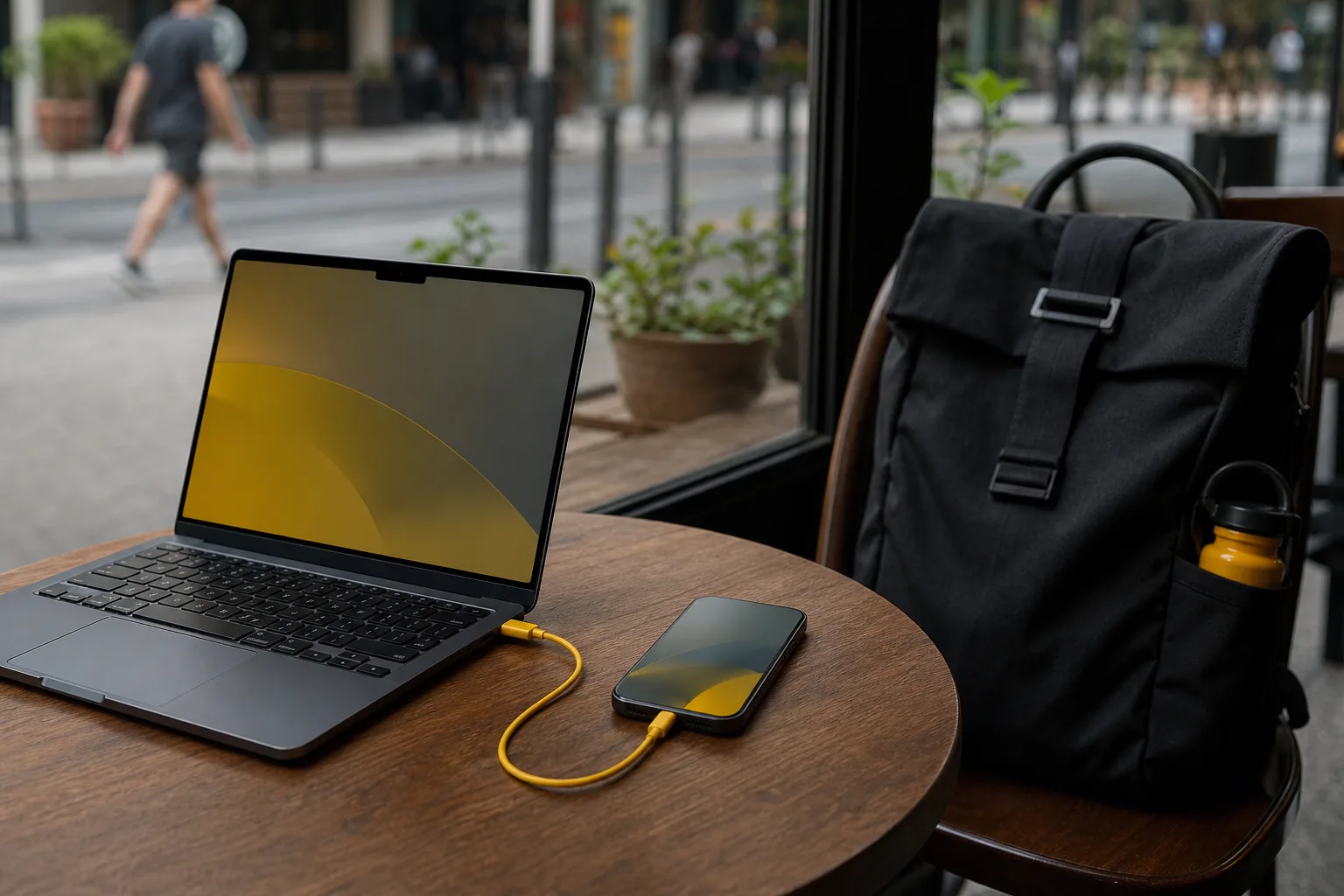
Our guide to how much data you need puts browsing at 50 to 150 MB an hour, video calls at 0.5 to 1.5 GB an hour and HD streaming at about 3 GB an hour. Apple adds that iCloud backups and photo uploads may not run over a Personal Hotspot.
- Pause cloud sync and large downloads on the laptop while it uses the hotspot.
- Turn off the hotspot when you stop working, so the laptop does not keep syncing.
- Check what is left in My eSIMs in your globeSIM account, and top up the same eSIM if you run low.
How much data will you need?
See typical use for maps, video, calls and social apps before you pick a plan.
eSIM hotspot not working: what to check
Start with the phone itself. If the phone has no mobile data on the travel eSIM, the hotspot has nothing to share, so fix the line first and the hotspot second.
Finding why the hotspot fails
The laptop has no internet on your hotspot
The phone has no data either
Check Cellular Data and Data Roaming on the travel line
Personal Hotspot is greyed out
Turn on Cellular Data in Settings, then Cellular
The laptop cannot see the network
Keep the hotspot screen open, turn on Maximize Compatibility
It connects but nothing loads
Restart both devices and check data left in My eSIMs
- Restart the phone that shares the data and the device that connects, then try again.
- Install the latest iOS or Android update on the phone.
- On iPhone, Apple's last step is Reset Network Settings: Settings, General, Transfer or Reset iPhone, Reset. It also clears saved Wi-Fi passwords, cellular settings, VPN and APN settings.
Apple lists the restart, update and reset steps in its page for when Personal Hotspot is not working. If the phone has data but the hotspot still fails, write to us through our help page and say which phone you use.
Keep the hotspot private and the battery going
A hotspot is a Wi-Fi network anyone nearby can see, so protect it with a password. Sharing data also drains the phone's battery faster, which matters on a long travel day.
- Set a password you do not use elsewhere. Apple asks for at least eight characters on iPhone.
- On Android, Google suggests plugging in your devices while tethering and turning tethering off when you are done.
- Turn on the Android setting that switches the hotspot off when no devices are connected, if your phone has it.
- On iPhone, connected devices disconnect automatically when you are not using the hotspot, to save battery.
Apple's advice fits travel too: turn off Personal Hotspot when you do not need it. Your plan's data then goes only to the apps on your phone.
What to do next
Set up the travel eSIM before you fly, and test the hotspot once you land. Plans for trips such as our eSIM for Turkey, Japan or the UAE all allow hotspot, with 5G where the network offers it. On a cruise, the hotspot works in port and near the coast, as our cruise eSIM guide explains.
- Check that your phone supports eSIM and is not locked to a carrier.
- Pick a plan size that covers your laptop, not just your phone.
- When you land, choose the travel eSIM for cellular data and turn on Data Roaming for it.
- Turn on the hotspot, connect the laptop, and turn it off when you are done.
Is your phone eSIM-compatible?
Search our list of phones, or let the page detect yours.
FAQ
Can you hotspot with an eSIM?
Yes. A phone shares eSIM data like any mobile data, over Wi-Fi, Bluetooth or USB. Every globeSIM plan allows hotspot and tethering, as long as the eSIM is your mobile data line.
Does using a hotspot use more data?
Usually, yes. A laptop loads full websites and syncs files and updates in the background. Pause cloud sync while you use the hotspot, and take a bigger plan if you will work online.
Will I pay roaming charges if I use an eSIM hotspot abroad?
No, not when the travel eSIM is your mobile data line: the hotspot uses your plan's data. Keep data roaming off on your home SIM, or your home carrier's roaming rates can apply.
Why is Personal Hotspot greyed out with my eSIM?
On iPhone, Personal Hotspot is greyed out when Cellular Data is off. Turn it on under Settings, then Cellular, and choose the travel eSIM for cellular data. Apple also notes that the carrier has to support it.
How many devices can join my eSIM hotspot?
On Android, Google says up to 10 devices over a Wi-Fi hotspot. On iPhone, Apple says the number depends on the carrier and the iPhone model. Every device shares the same plan data.
Sources
- Share your internet connection from your iPhone (Apple Support, checked Nov 22, 2026)
- Share a mobile connection by hotspot or tethering on Android (Android Help, checked Nov 22, 2026)
- If Personal Hotspot is not working on your iPhone or iPad (Wi-Fi + Cellular) (Apple Support, checked Nov 22, 2026)
- Connect to the Personal Hotspot of an iPhone or iPad (Apple Support, checked Nov 22, 2026)